Window 11 encryption and decryption issues
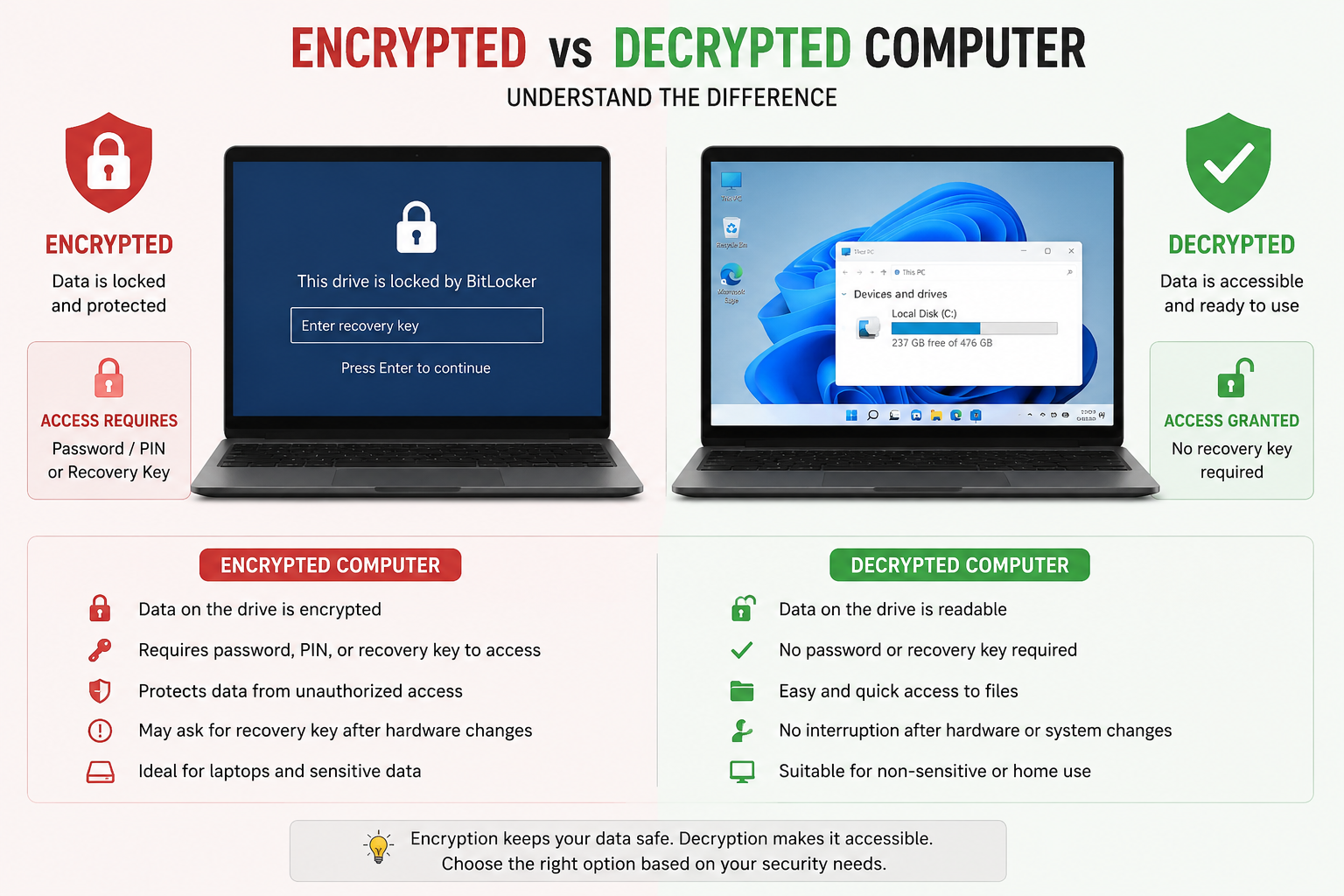
How to Avoid Windows 11 Drive Encryption and Decryption Problems
Windows 11 includes strong security features, and one of the most important is drive encryption. Features such as BitLocker and Device Encryption are designed to protect your files if your computer is lost, stolen, or accessed without permission. While encryption is useful, it can also create serious problems when users do not understand how it works.
Many Windows 11 users only discover their drive is encrypted when the computer suddenly asks for a BitLocker recovery key. This can happen after a Windows update, BIOS reset, motherboard change, TPM issue, or failed startup. Without the correct recovery key, accessing the data can become very difficult or even impossible.
What Causes Windows 11 Encryption Problems?
Windows 11 may automatically enable Device Encryption on many modern laptops and desktops, especially systems using a Microsoft account and TPM security hardware. In some cases, users may not even realise that encryption is active.
Common causes of encryption and decryption problems include motherboard replacement, TPM changes, BIOS or UEFI reset, Secure Boot changes, corrupted Windows files, failed updates, incorrect SSD cloning, and missing BitLocker recovery keys.
Always Save Your BitLocker Recovery Key
The most important way to avoid encryption problems is to save your BitLocker recovery key before anything goes wrong. This key is required if Windows detects a security change and locks the drive during startup.
You should store the recovery key in more than one safe place, such as your Microsoft account, a USB drive, printed paper copy, secure cloud storage, or password manager. Never save the only copy of the key on the encrypted computer itself.
Disable Encryption if You Do Not Need It
Some home or office users may not need drive encryption. If the computer does not contain sensitive information and stays in a safe location, disabling BitLocker or Device Encryption may reduce future access problems.
To check encryption status in Windows 11, open Settings, go to Privacy & Security, and select Device Encryption or BitLocker. If you disable encryption, allow the decryption process to finish completely before restarting or shutting down the computer.
Be Careful Before Hardware Changes
Hardware changes are one of the most common reasons Windows asks for a BitLocker recovery key. Before upgrading or replacing parts such as the SSD, motherboard, RAM, or TPM module, you should suspend BitLocker protection and back up important files.
It is also a good idea to record current BIOS settings before making changes. This helps avoid startup issues after repairs or upgrades.
Avoid Random BIOS and TPM Changes
Changing BIOS, UEFI, Secure Boot, or TPM settings without preparation can trigger BitLocker recovery mode. You should never clear the TPM unless you fully understand the result and have already saved your recovery key.
Before BIOS updates or security setting changes, always suspend BitLocker and confirm that your recovery key is available.
Keep Regular Backups
Encryption protects data from unauthorised access, but it does not replace proper backups. If the drive fails, Windows becomes corrupted, or the recovery key is lost, your data may still be at risk.
A good backup plan should include external hard drive backups, cloud backups, and regular system image backups. This protects you against drive failure, ransomware, accidental deletion, and encryption lockouts.
Do Not Interrupt Encryption or Decryption
Never shut down or restart your computer while BitLocker is encrypting or decrypting a drive. Interrupting this process can cause file corruption or startup failure. Keep laptops connected to power and allow Windows to complete updates, repairs, and encryption changes properly.
Get Professional Help if Locked Out
If your Windows 11 computer is already locked by BitLocker, avoid using unknown recovery tools or random online decryption software. These tools may damage the drive further or reduce the chance of successful recovery.
A professional technician may be able to help with BitLocker recovery, TPM startup issues, corrupted Windows installations, SSD migration problems, and data recovery. However, without the correct recovery key, even professional recovery options may be limited.
Final Thoughts
Windows 11 drive encryption is useful when managed correctly, but it can become a major problem if users are unprepared. The best way to avoid encryption and decryption issues is to save your recovery key, keep regular backups, avoid careless BIOS changes, and prepare carefully before hardware upgrades.
A few minutes spent backing up your recovery key today can save hours of frustration and may prevent permanent data loss in the future.